

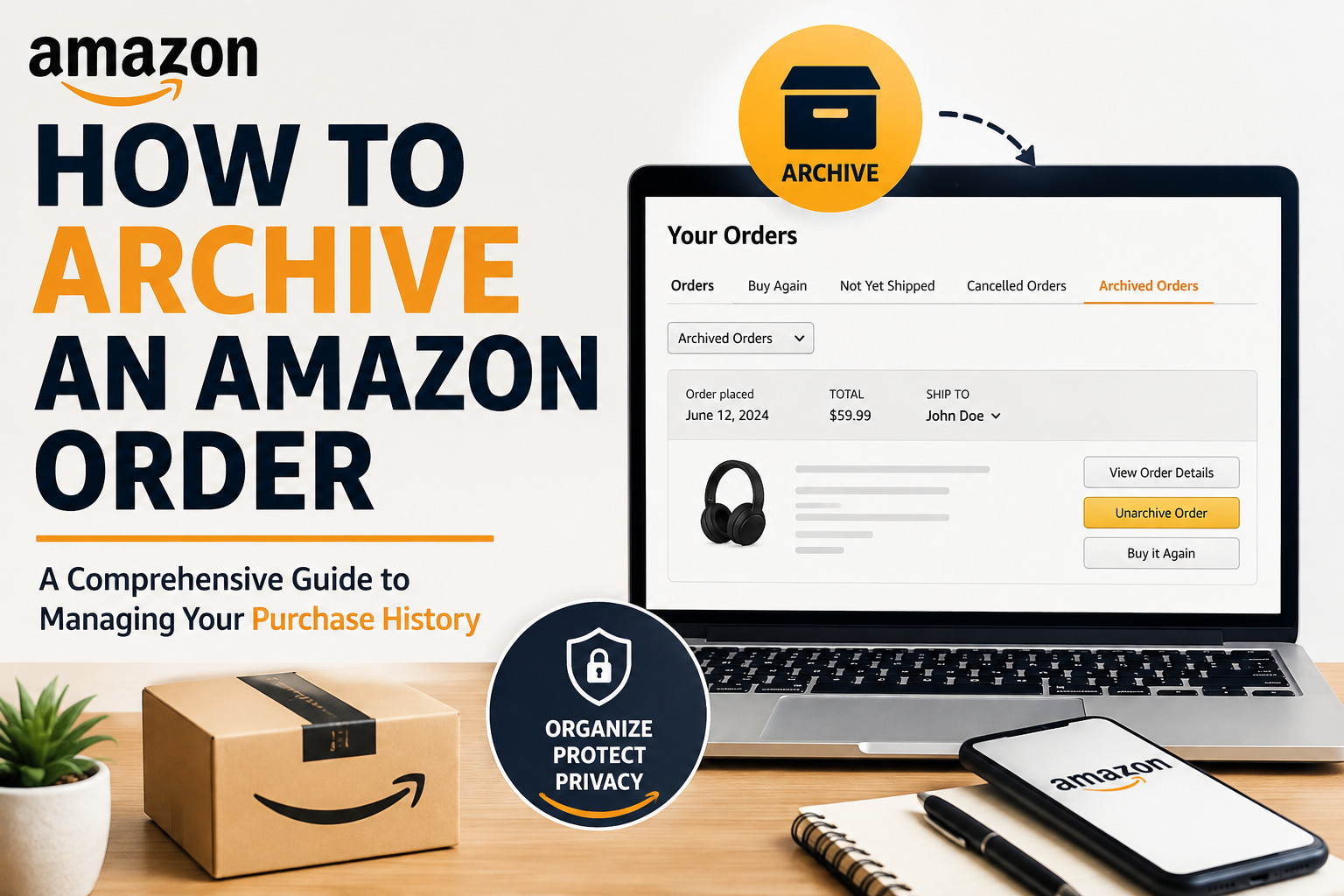
When you archive amazon purchases, you are essentially moving them from your primary order history view to a separate, less prominent section of your Amazon account. This action does not delete the order or its associated details; rather, it serves as a way to organize and streamline your visible purchase records. The primary benefit is to remove amazon order from history’s default display without losing any record of the transaction.
What ‘Archiving’ Means for Your Amazon Orders
Archiving an order on Amazon means it will no longer appear in your standard ‘Your Orders’ list. Instead, it will be relocated to an ‘Archived Orders’ section. This allows you to effectively hide amazon order details from your immediate view, making your main order history cleaner and easier to navigate. All details, including order number, shipping information, product details, and return/warranty eligibility, remain accessible within the archived section.
Why Archive Amazon Purchases?
There are several practical reasons why users choose to archive orders:
- Organizing Your Order History: Over time, your Amazon order history can become very long. Archiving old or less relevant purchases helps to keep your main view focused on recent or important transactions.
- Managing Shared Accounts: If multiple individuals use the same Amazon account, archiving can help manage visibility. For instance, you might archive amazon purchases that are gifts for other account users to maintain an element of surprise or privacy. This contributes to better amazon order history privacy within a shared household.
- Enhancing Personal Privacy: For certain sensitive or personal purchases, archiving offers a way to keep those items out of immediate sight, especially if others occasionally access your account or if you simply prefer a more discreet record.
- Simplifying Returns and Support: By archiving completed or resolved orders, you can make it easier to find active orders or those still within a return window.
Step-by-Step Guide: How to Archive an Amazon Order on Desktop
The process for how to archive an Amazon order is straightforward and can be completed in a few simple steps on the Amazon website.
Accessing Your Order History
1. Open your web browser and go to Amazon.com.
2. Log in to your Amazon account if you haven’t already.
3. Hover over ‘Account & Lists’ in the top right corner of the page.
4. From the dropdown menu, click on ‘Orders’. This will take you to your ‘Your Orders’ page, displaying your recent purchases.
Locating and Archiving Specific Orders
1. Scroll through your order history to find the specific order you wish to archive. You can use the ‘X orders placed in’ dropdown menu to filter by year if the order is older.
2. Once you’ve located the order, look for the ‘Archive order’ button or link associated with that particular order. It is typically located below the order details, often near options like ‘View order details’ or ‘Write a product review’.
3. Click the ‘Archive order’ button.
4. A confirmation prompt will appear asking if you are sure you want to archive the order. Click ‘Archive Order’ again to confirm.
How to Archive an Amazon Order on Mobile (iPhone & Android)
Many users try to find an option to archive orders directly inside the Amazon Mobile App. However, Amazon currently does NOT support order archiving within the official iOS or Android app.
If you do not have access to a desktop computer, you can easily bypass this limitation on your phone by using your mobile web browser in Desktop View mode:
1. Open Your Mobile Web Browser: Launch Safari on iPhone or Google Chrome on Android.
2. Go to Amazon Website: Type www.amazon.com in the address bar and log into your account.
3. Enable Desktop View / Desktop Site: This is the key step to access the hidden desktop settings on mobile.
• On Google Chrome (Android): Tap the three vertical dots in the top-right corner and check the box for ‘Desktop site’.
• On Safari (iPhone): Tap the ‘aA’ icon on the left side of the address bar and select ‘Request Desktop Website’.
4. Navigate to Your Orders: Once the full desktop version of Amazon loads, tap ‘Account & Lists’ in the top right corner and choose ‘Orders’.
5. Archive Your Order: Locate the order you wish to hide and tap the ‘Archive order’ button below the item details.
Managing Your Archived Amazon Orders
Archiving is not a permanent removal. You can always access and restore your archived orders. Effective amazon order history management includes knowing how to interact with these hidden records.
Direct Link Shortcut (Fast Access)
Pro Tip: You can quickly access your archived orders on desktop by navigating directly to: Your Account > Your Orders > Dropdown Filter > Archived Orders.
How to View Archived Amazon Orders
1. Go to Amazon.com and log in.
2. Hover over ‘Account & Lists’ and click on ‘Orders’.
3. On the ‘Your Orders’ page, locate the ‘X orders placed in’ dropdown menu (typically defaults to ‘past 3 months’).
4. Click on this dropdown menu. Scroll to the very bottom of the list of years where you will see an option labeled ‘Archived Orders’.
5. Click ‘Archived Orders’ to view all items you have previously hidden.
Unarchiving an Amazon Order
If you need to restore an archived order to your main order history, the process is simple:
1. Follow the steps above to view your ‘Archived Orders’ list.
2. Locate the specific order you wish to restore.
3. Next to the order details, click the ‘Unarchive order’ button.
The order will immediately be moved back to your standard ‘Your Orders’ list under the original year it was placed.
Archiving vs. Deleting: What You Need to Know
A common question among Amazon users is whether they can permanently remove orders. It’s crucial to understand the distinction between archiving and deleting.
Can You Delete Amazon Orders Permanently?
No, you cannot permanently delete Amazon orders from your account history. Amazon’s policy is to retain a complete record of all transactions for customer service, returns, warranty claims, tax documentation, and legal compliance. Therefore, there is no user-facing option to delete order history entirely. Archiving is the closest available feature for managing purchase visibility.
Archiving Limit (500 Orders)
Important Note: Amazon places a limit of 500 archived orders per account. If you reach this maximum limit, you will need to unarchive older purchases before you can archive new ones.
Implications of Archiving vs. Deleting
Since permanent deletion is not an option, archiving serves as a practical alternative:
- Record Retention: Archived orders remain part of your Amazon account record. You can still access order details, invoices, tracking information, and initiate returns or warranty claims if applicable.
- Privacy Limitations: While archiving removes orders from the immediate main view, it does not erase the data. Anyone with access to your Amazon credentials can still navigate to the ‘Archived Orders’ section and view those purchases.
- Account Integrity: Maintaining a complete purchase history ensures that Amazon can provide consistent customer support and accurate transactional records.
Enhancing Amazon Order History Privacy
Beyond archiving, there are additional steps you can take to enhance your amazon order history privacy and improve overall account management.
Best Practices for Managing Your Purchase Records
- Use Amazon Household (Best for Families): If you share Prime benefits with family members, set up Amazon Household. This allows two adults to share Prime benefits while keeping their personal purchase histories, recommendations, and order lists completely private and separate.
- Use Separate Accounts for Gifts: If you frequently purchase gifts for family members on the same account, consider creating a dedicated secondary Amazon account to completely segregate gift orders.
- Manage Your Browsing History: While archiving hides past purchases, items you recently searched for still appear in your browsing history. You can pause or remove items from your browsing history via ‘Account & Lists’ > ‘Browsing History’.
- Manage Your Public Wish Lists: Ensure your wish lists are set to ‘Private’ if you don’t want family members or friends to see items you plan to buy.
Frequently Asked Questions About Amazon Order Archiving
Q: Does archiving an Amazon order delete it?
A: No, archiving an Amazon order does not delete it. It simply moves the order from your main ‘Your Orders’ list to a separate ‘Archived Orders’ section. All order details remain accessible.
Q: Why can’t I see the ‘Archive Order’ option on the Amazon Mobile App?
A: Amazon has restricted the order archiving feature exclusively to its desktop web interface. To archive orders on a smartphone, you must open Amazon in Chrome or Safari and enable ‘Desktop Site’ / ‘Request Desktop Website’.
Q: Is there a limit to how many Amazon orders I can archive?
A: Yes, Amazon allows you to archive up to 500 orders per account. If you reach this limit, you must unarchive older items before archiving new ones.
Q: Can I hide an Amazon order from everyone on a shared account?
A: Archiving hides orders from the default view. However, anyone with login access can navigate to the ‘Archived Orders’ folder. For true privacy, set up Amazon Household to split accounts while sharing Prime benefits.
Q: How do I find my archived Amazon orders?
A: Go to ‘Account & Lists’ > ‘Orders’. On the ‘Your Orders’ page, click the date filter dropdown menu (e.g., ‘past 3 months’) and scroll down to select ‘Archived Orders’.
Q: Is it possible to unarchive an Amazon order?
A: Yes. Simply go to your ‘Archived Orders’ section, locate the order, and click the ‘Unarchive order’ button next to it. It will return to your main order history under its original purchase date.
Conclusion
Knowing how to archive an Amazon order is an essential skill for maintaining an organized and private online shopping experience. While Amazon does not allow permanent deletion of order history, archiving provides an effective solution for organizing your main view and hiding discreet purchases.
By taking advantage of the desktop browser workaround on mobile, leveraging Amazon Household for shared privacy, and keeping the 500-order limit in mind, you can take full control of your purchase records. Apply these strategies today to keep your Amazon order history clean, organized, and secure.